
Computers are essential for work, communication, banking, shopping, and entertainment. But with that convenience comes risk: malware, phishing scams, data loss, slow performance, and preventable hardware issues can all disrupt daily life. For a tech support company, one of the most valuable things to teach customers is that a few consistent habits can dramatically improve security, reliability, and performance.
This guide covers the best practices every computer user should follow to keep devices safe, efficient, and dependable.
1. Keep Your Operating System and Software Updated
One of the simplest and most important habits is keeping your system updated. Software updates do more than add features - they often patch security vulnerabilities that hackers actively exploit.
Users should:
- Enable automatic updates for Windows, macOS, browsers, and mobile-connected desktop apps.
- Regularly update security software, printer drivers, office applications, and video conferencing tools.
- Restart the computer when prompted so updates can fully install.
Delaying updates can leave a computer exposed to known threats. A machine that misses critical patches is much easier to compromise than one that stays current.
2. Use Strong, Unique Passwords
Weak passwords remain one of the biggest causes of account compromise. Many users still reuse the same password across multiple websites, which means one leaked password can unlock several accounts.
Best practices include:
- Create long passwords or passphrases with a mix of words, numbers, and symbols.
- Avoid using names, birthdays, phone numbers, or simple patterns.
- Never reuse passwords across email, banking, work, and shopping accounts.
- Use a password manager to store and generate secure credentials.
A password manager helps users maintain strong security without needing to memorize dozens of complex logins.
3. Turn On Multi-Factor Authentication
Passwords alone are not enough. Multi-factor authentication, often called MFA or two-factor authentication, adds another layer of protection by requiring a second verification step.
This may include:
- A code from an authenticator app
- A hardware security key
- A text message code
- A biometric prompt on a trusted device
MFA is especially important for:
- Email accounts
- Banking and payment platforms
- Cloud storage services
- Work logins
- Social media accounts
If a password is stolen, MFA can still block unauthorized access.
4. Learn to Spot Phishing Attempts
Phishing attacks are designed to trick users into handing over passwords, financial information, or device access. These attacks often arrive through email, text messages, pop-up alerts, or fake support calls.
Warning signs include:
- Urgent language such as "your account will be closed immediately"
- Suspicious sender addresses
- Unexpected attachments
- Links that do not match the real company website
- Requests for passwords or payment information
Computer users should never click unfamiliar links or download files from unknown sources. When in doubt, go directly to the official website instead of using the message link.
5. Back Up Important Files Regularly
Data loss can happen because of hardware failure, accidental deletion, theft, ransomware, or power surges. Without backups, important files may be gone permanently.
A smart backup strategy includes:
- Saving files to a cloud backup service
- Keeping a local external drive backup
- Backing up documents, family photos, tax records, and work files
- Testing backups occasionally to confirm files can actually be restored
A useful rule is the 3-2-1 backup approach:
| Rule | Meaning |
|---|---|
| 3 copies | Keep three copies of your data |
| 2 media types | Store them on two different kinds of storage |
| 1 offsite copy | Keep one copy in the cloud or another secure location |
6. Install and Maintain Reliable Security Software
Antivirus and endpoint protection software can detect threats before they cause serious damage. While no tool catches everything, a reputable security program adds an essential defense layer.
Users should:
- Install trusted antivirus or endpoint protection
- Keep virus definitions updated
- Run regular scans
- Enable built-in firewall protection
- Avoid installing multiple antivirus products that may conflict
Good security software works best when paired with smart user behavior.
7. Be Careful With Downloads and Installations
Free software, browser extensions, pirated content, and unofficial apps often carry hidden risks. Many infections begin when a user downloads something that appears harmless.
Safer habits include:
- Download software only from official vendor websites or trusted app stores
- Read installation screens carefully
- Decline bundled toolbars or unnecessary add-ons
- Remove programs that are no longer needed
- Avoid pirated software entirely
If a site pressures users with flashy "Download Now" buttons, it is often a warning sign.
8. Secure Your Wi-Fi and Home Network
A secure computer also depends on a secure network. An outdated or poorly configured router can expose every connected device in a home or office.
Users should:
- Change the router's default admin username and password
- Use WPA2 or WPA3 encryption
- Rename the default network name if appropriate
- Install router firmware updates
- Disable remote management unless it is truly needed
- Use a guest network for visitors or smart home devices
Public Wi-Fi also deserves caution. Avoid accessing sensitive accounts on open networks unless using a trusted VPN.
9. Lock Devices When Not in Use
Physical security matters just as much as digital security. An unattended computer in an office, classroom, lobby, or even at home can become a quick target for unauthorized access.
Helpful habits include:
- Use a screen lock password, PIN, or biometric login
- Set the computer to auto-lock after a few minutes of inactivity
- Shut down or lock the device before stepping away
- Keep laptops in secure bags when traveling
For businesses, this simple practice helps protect company information from casual exposure.
10. Keep the Desktop and Storage Organized
A cluttered system can slow productivity and make files harder to find. Good organization also reduces the chance of deleting or misplacing important data.
Recommended practices:
- Create folders for documents, photos, downloads, and projects
- Rename files clearly and consistently
- Empty the recycle bin only after checking contents
- Clean up unused files and applications regularly
- Avoid saving everything to the desktop
Organization improves both workflow and troubleshooting.
11. Monitor Computer Performance
Users should pay attention when a computer becomes unusually slow, noisy, hot, or unstable. These symptoms may indicate malware, failing hardware, too many startup programs, or insufficient storage.
Early warning signs include:
- Long boot times
- Frequent freezing or crashing
- Pop-ups and browser redirects
- Overheating
- Clicking sounds from drives
- Programs opening very slowly
Addressing issues early often prevents larger failures later. Tech support providers should encourage users to report these symptoms before the system becomes unusable.
12. Practice Safe Browsing Habits
Web browsing is part of daily computer use, but it is also one of the most common ways users encounter scams and malicious content.
Safe browsing habits include:
- Visit trusted websites
- Check for HTTPS on sites handling logins or payments
- Avoid clicking suspicious ads
- Be cautious with browser notifications
- Review browser extensions and remove anything unnecessary
- Log out of sensitive accounts on shared devices
A browser is often the front door to the rest of the system, so careful browsing goes a long way.
13. Protect Against Power Problems
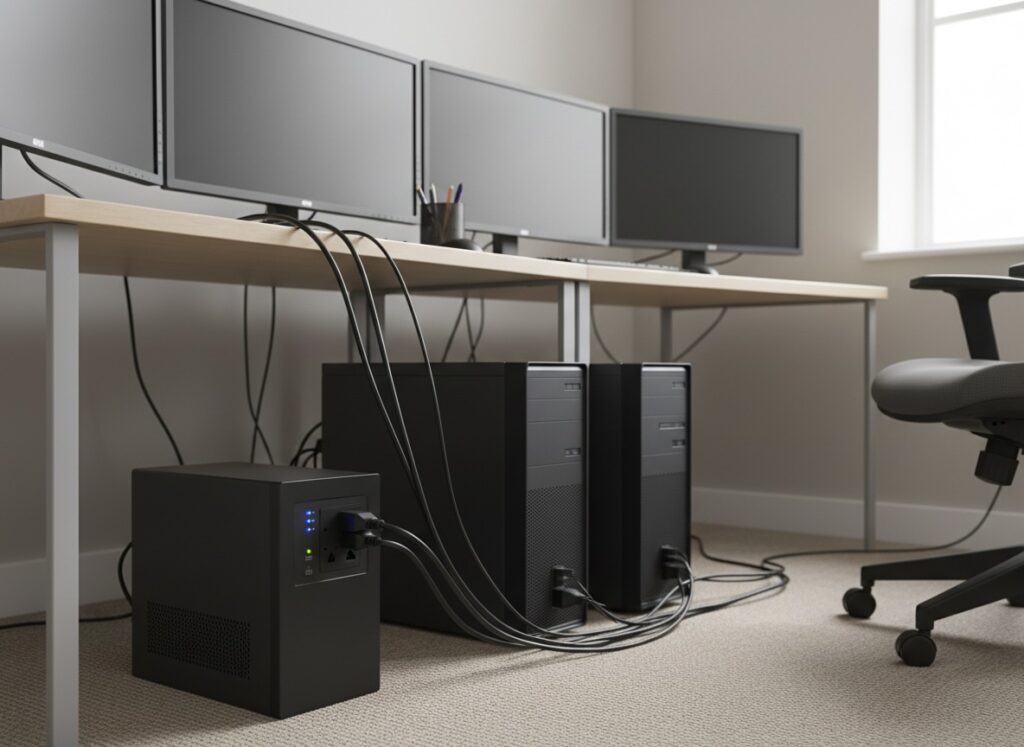
Unexpected power loss can damage files, interrupt updates, and stress hardware. This is especially important for desktop computers and office environments.
Users should consider:
- Using a surge protector
- Installing an uninterruptible power supply (UPS) for critical systems
- Saving work frequently
- Avoiding forced shutdowns unless absolutely necessary
A small investment in power protection can prevent expensive repair and recovery work.
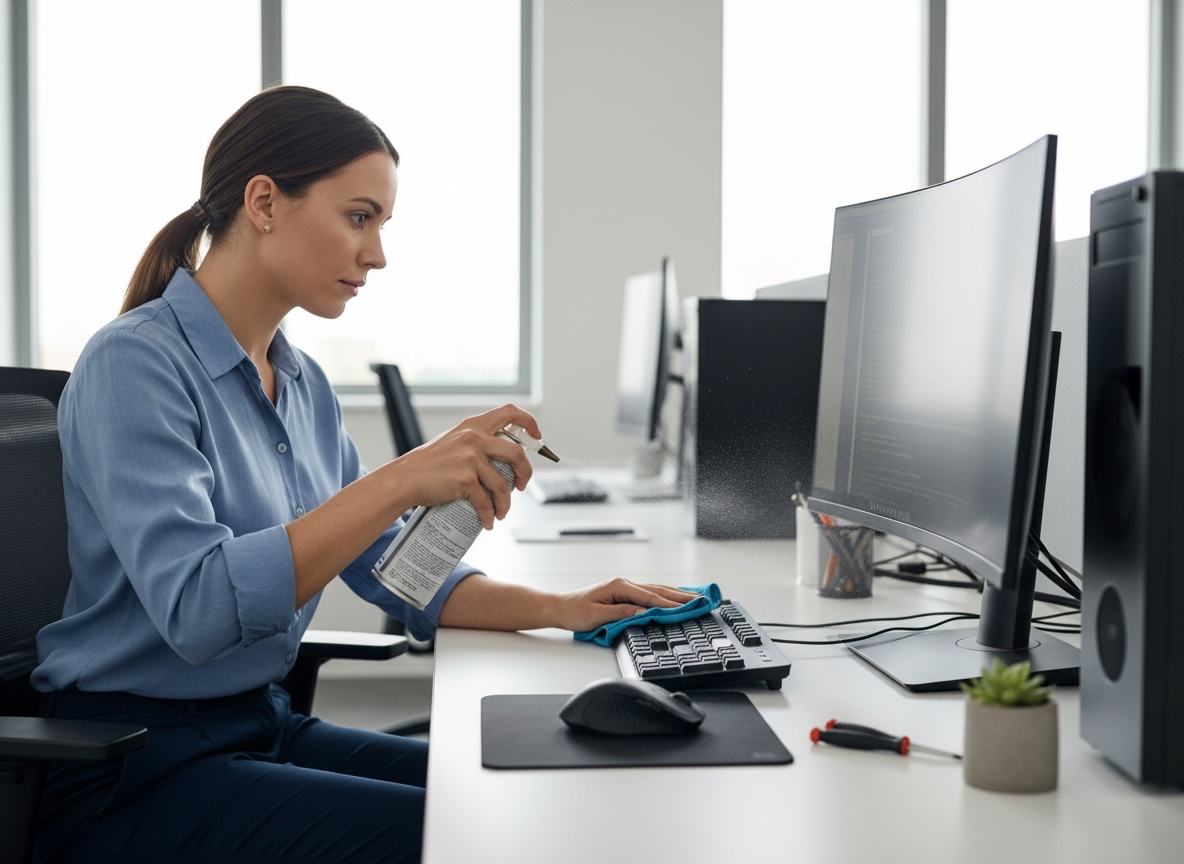
14. Clean Hardware Properly
Dust, heat, and poor ventilation can shorten the lifespan of a computer. Physical care is often overlooked, but it plays a major role in performance and reliability.
Best practices include:
- Keep vents clear
- Use compressed air carefully to remove dust
- Keep food and drinks away from the keyboard
- Avoid blocking airflow on beds, couches, or laps for long periods
- Transport laptops in padded cases
- Clean screens with approved microfiber cloths and safe cleaners
Hardware that stays cool and clean generally lasts longer.
15. Know When to Call Tech Support
Not every issue should be handled alone. Attempting advanced repairs without experience can make problems worse.
Users should contact a professional when:
- A device shows signs of malware infection
- Important files are missing or encrypted
- The computer will not boot
- There are repeated blue screen or crash errors
- Strange network activity appears
- Hardware replacement may be needed
A trusted tech support company can diagnose issues quickly, reduce downtime, and help prevent repeat problems.
Why These Best Practices Matter
Computer problems are not always caused by bad luck. In many cases, they result from overlooked maintenance, weak security habits, or delayed action. By following a consistent set of best practices, users can:
- Reduce the risk of cyberattacks
- Avoid unnecessary downtime
- Extend the life of their devices
- Improve speed and productivity
- Protect personal and business data
For tech support companies, educating customers is just as important as fixing problems. Preventive guidance builds trust, reduces recurring issues, and positions support teams as long-term technology partners.
Final Thoughts
The best computer habits are usually simple: update regularly, use strong passwords, back up data, stay alert online, and address issues early. These actions do not require advanced technical knowledge, but they can prevent many of the most common and costly problems computer users face.
For a tech support company blog, this topic is especially valuable because it speaks to both home users and businesses. It shows that professional support is not just about repairing broken systems - it is also about helping customers build safer, smarter technology habits.