
Hardware maintenance
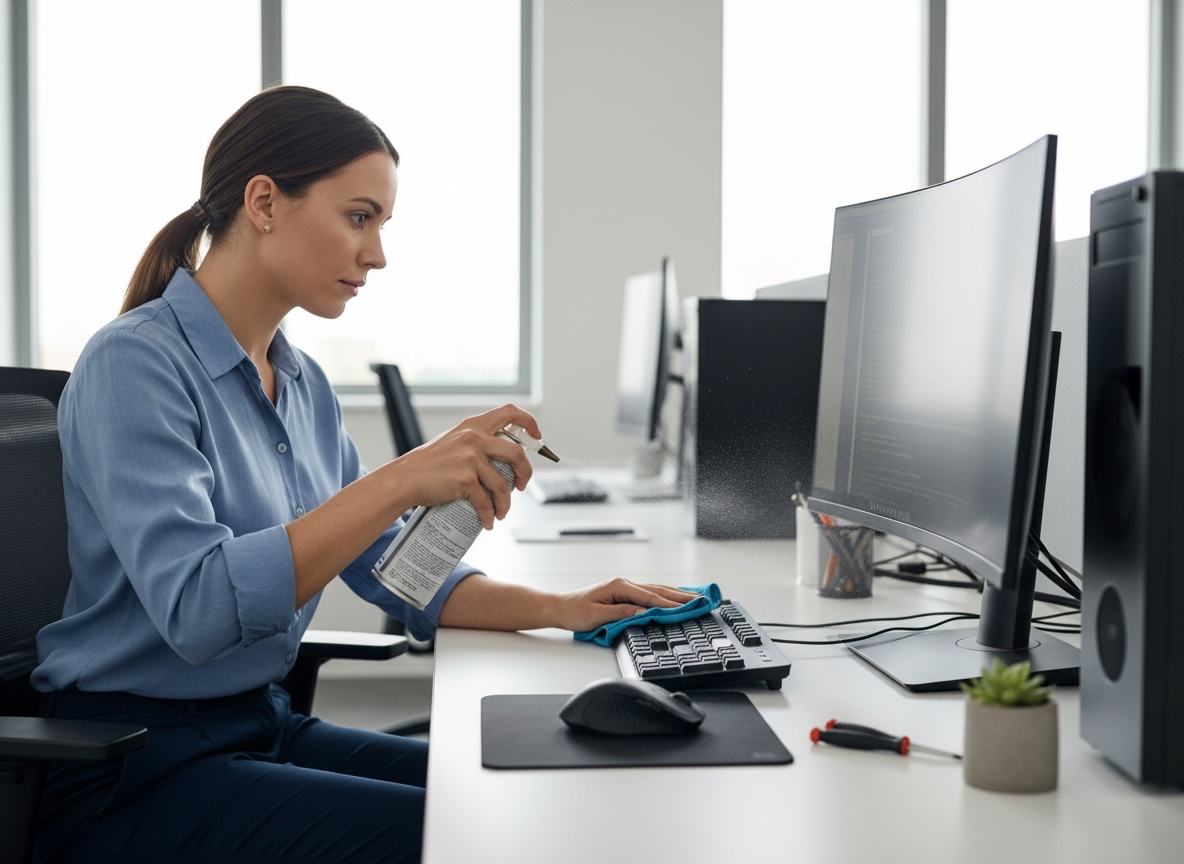
- Clean dust from vents, fans, and filters every 1-3 months. Dust traps heat and makes fans work harder, which shortens component life.
- Check airflow around the computer. Keep vents clear and avoid pushing a desktop or laptop against walls, blankets, or clutter.
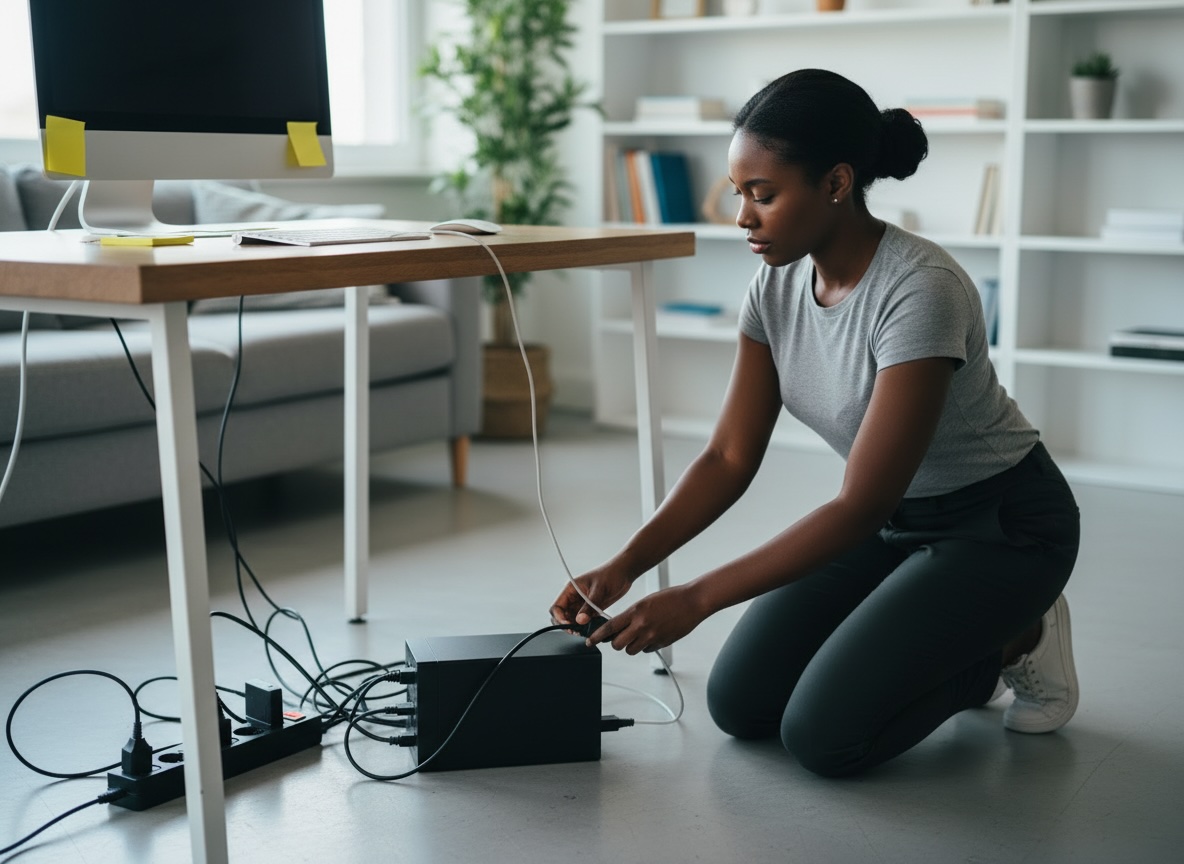
- Inspect cables and ports for fraying, looseness, bent pins, or dust buildup. Bad cables often cause "mystery" problems.
- Clean the keyboard, mouse, and screen with appropriate materials. Use microfiber cloths and avoid spraying liquid directly onto the device.
- Listen for unusual noises such as grinding fans or clicking hard drives. Those are early warning signs of hardware failure.
- Monitor temperatures using trusted system tools or utilities. High CPU or GPU temperatures can point to dust, bad airflow, or failing thermal paste.
- Check battery health on laptops. Swelling, rapid drain, or overheating means the battery may need replacement.
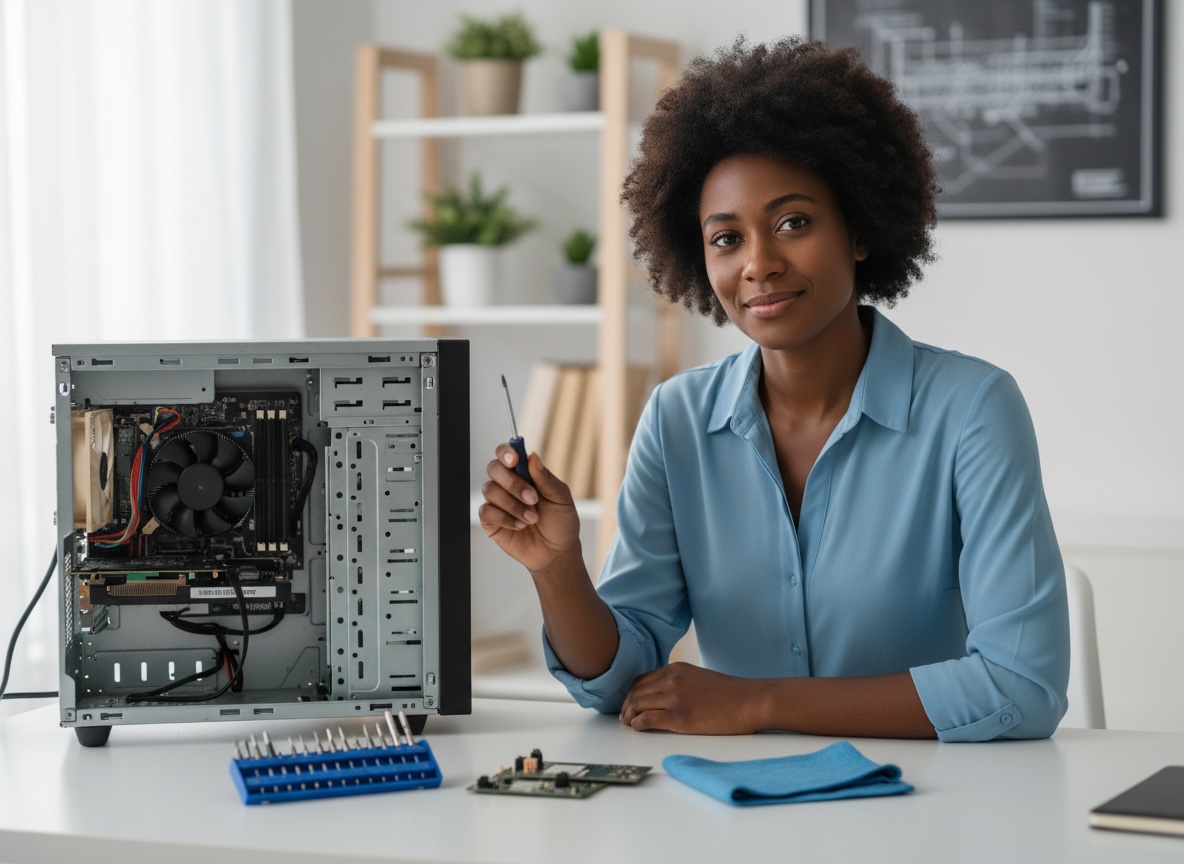
- Reseat upgradeable components if needed on desktops, such as RAM or storage drives, but only after fully powering down and unplugging.
- Replace worn thermal paste on older desktops or gaming laptops if overheating persists and you’re comfortable opening the system.
- Test backup power devices like surge protectors or UPS units.